Geotag your posts
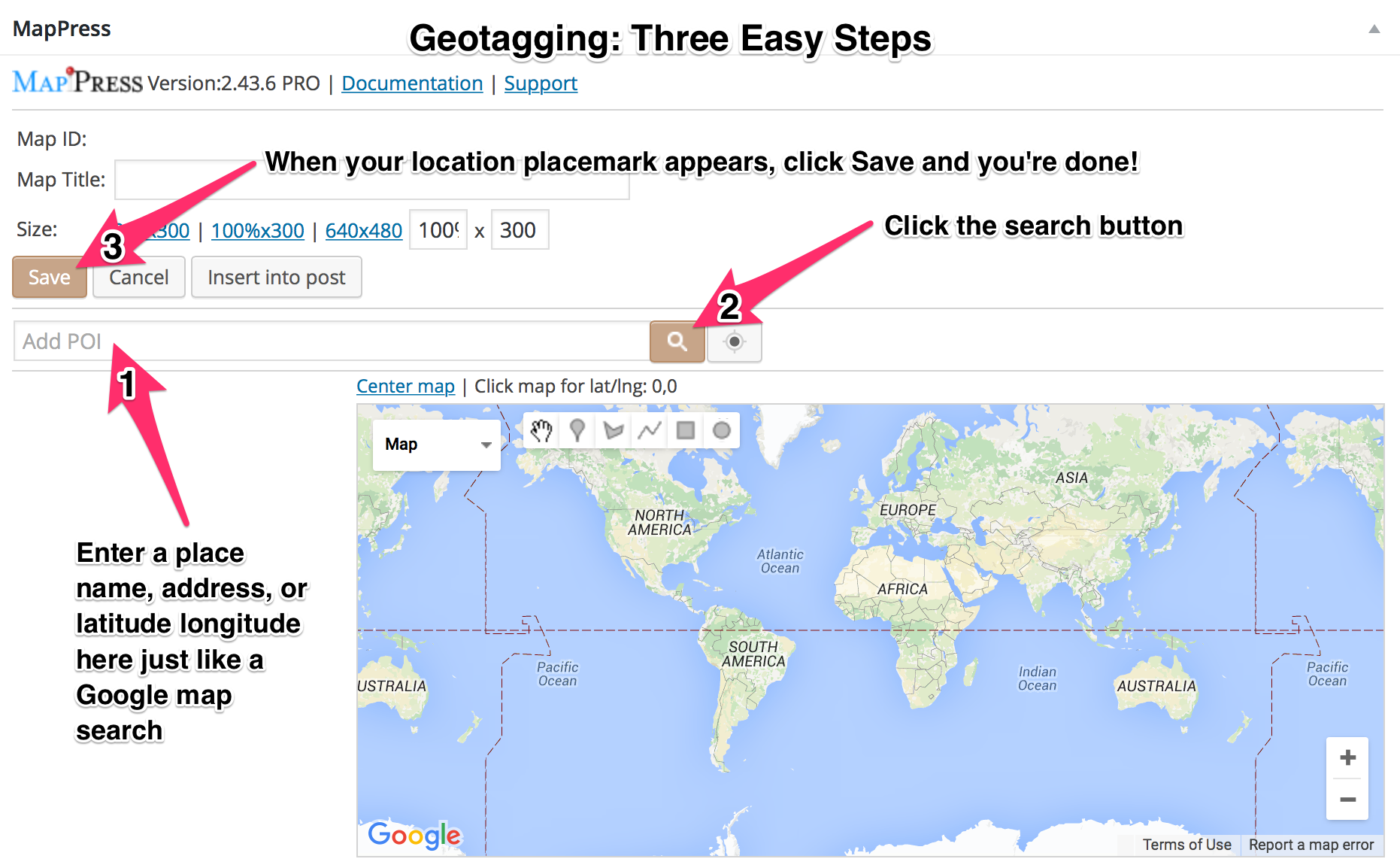 We strongly recommend that you geolocate your posts so that you can see the connections between all the places you have studied. You will find the MapPress box near the bottom of the page when you are editing a post or page. (Geotagging can be done automatically on the WordPress app.)
There are many options with MapPress, but the easiest way takes three simple steps; see the diagram at upper right.
- Add a location…this is how MapPress works. You can type a landmark, business, address, city, or coordinates into the Add POI box OR click the My Location icon next to the search button.
- Click the search button to the right of this box. MapPress will then find your location and add it below.
- When your location placemark appears, click Save to save the geotag. Your post will now be geotagged, whether or not you display your map. That’s it! (If you enter multiple location geotags, make sure to click Center Map before saving so that they all show up.)
If you want to insert a KML into your map, see the simple instructions found in this post.
Make a mashup map
While it is nice to see a map with your posts, geotagging your posts has a greater purpose. You can now create mashup maps like this one. It’s displaying a mashup map of all geotagged posts. To insert a mashup map you will use shortcode, which can be a bit tricky.
- First, decide which post category you want to display on the mashup map. If the posts you want to include do not share the same category yet, make one and select it on each post page.
- The shortcode from the example above is [mashup query =”category_name= sample-project-01″ mapTypeId =”satellite” mashupClick = “poi” mashupTitle = “post”]. You may copy/paste this one to a new line in your post/page and replace “sample-project-01” with the category of your geotagged posts. See here for list of acceptable shortcode parameters.
- Now, click Preview to see your mashup map! If that didn’t work, check the text editor to see if there was something wrong with the code. When you click a placemark in the mashup it will display the post title and excerpt of the post it is associated with.
Setup MapPress plugin
The plugin we use is called MapPress Easy Google Maps. If you are activating this plugin on your own site, please ask for support and we’ll help you set it up, including Google API keys. Below are some recommended MapPress plugin settings:
- Dashboard > MapPress > Basic Settings > Automatic map display > check “Bottom of Post.”
- Dashboard > Mappress > Map Settings > Map Links > check all three: “Bigger map,” “Center map,” and “Reset map.”