PDF Maps is a map application by Avenza that can be used on iPads and mobile devices. PDF Maps allows a user to create and view geolocated “placemarks” on a variety of basemaps. This is great for taking quick and simple field notes, as opposed to Fulcrum which administers comprehensive surveys. These basemaps can be uploaded by the user, or downloaded from the store. This allows for toggling between maps of different temporal and contextual characteristics.
Click images to enlarge
Adding Basemaps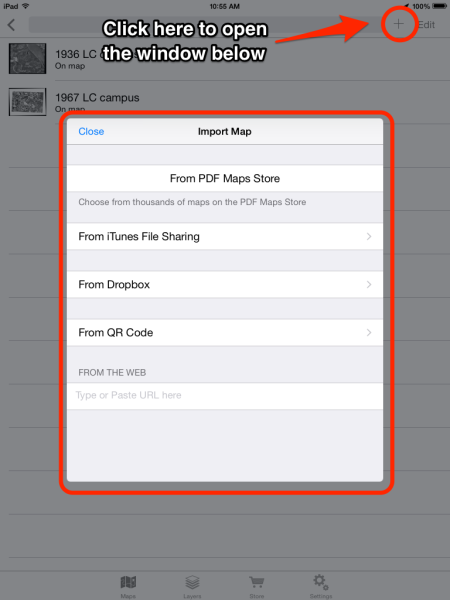
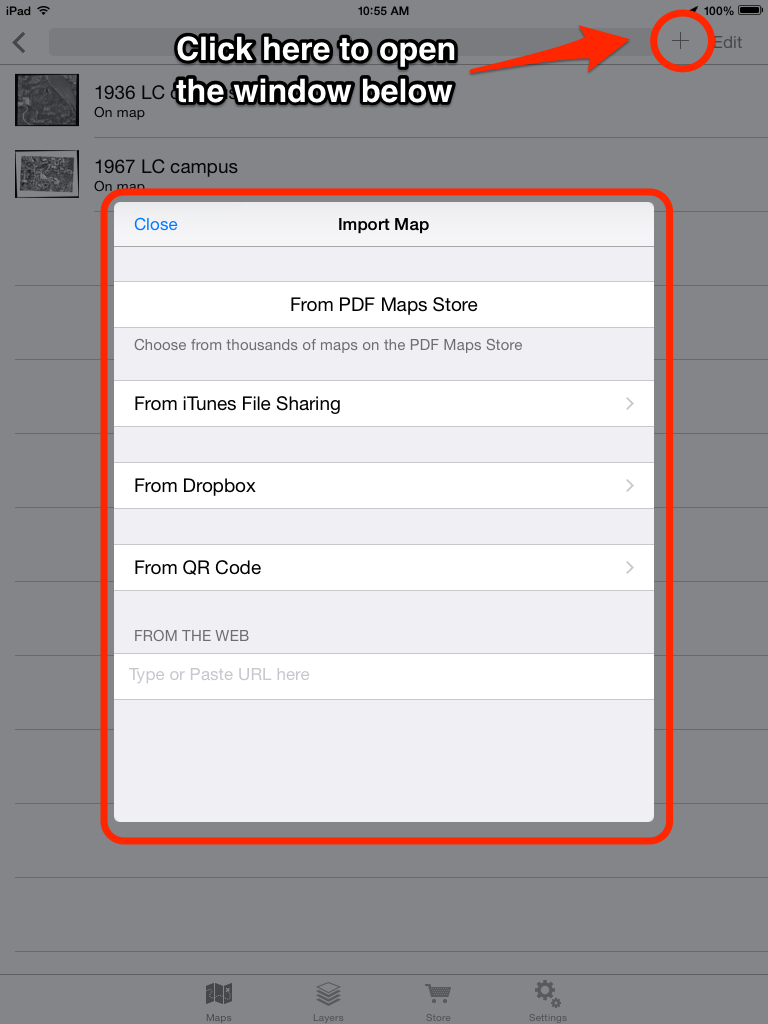
- Adding many basemaps is one of the best features of PDF Maps since you can add as many as you want from different sources.
- The image to the right shows how to add a map.
- After clicking the “+ ” sign icon, select the map source.
- PDF Maps has a store where you can buy maps, and access maps for free.
- If you are adding your own map, you can do this via iTunes file sharing. The map needs to be a georeferenced tiff file. See more help information if this is the case.
Toggle Between Basemaps
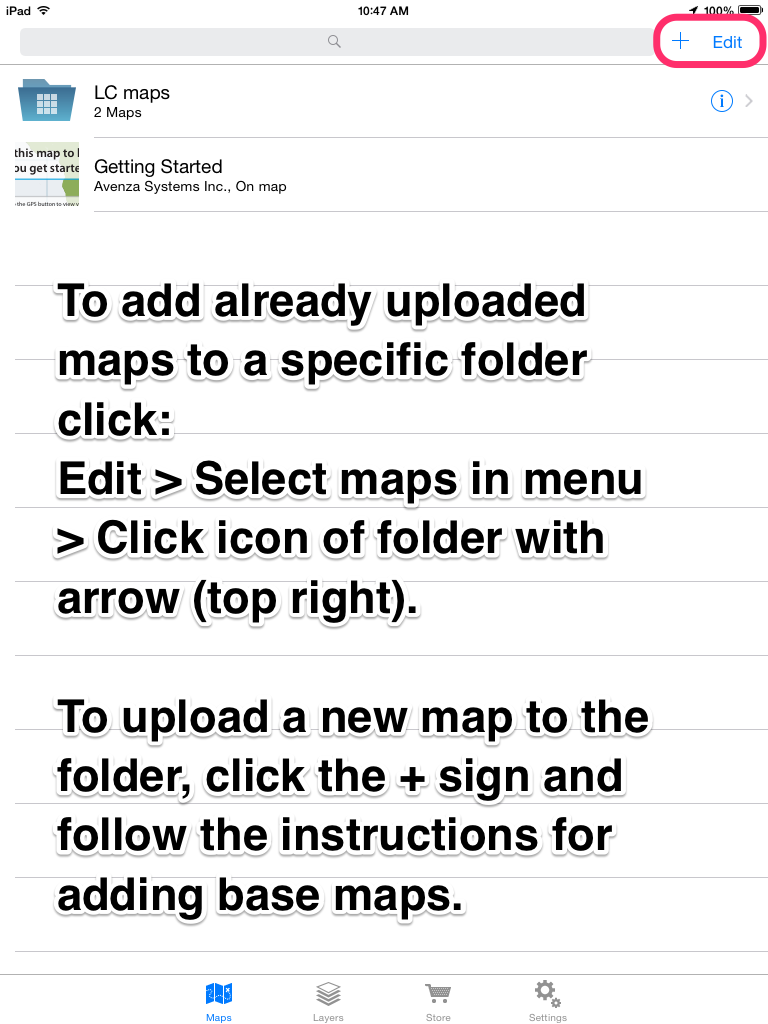
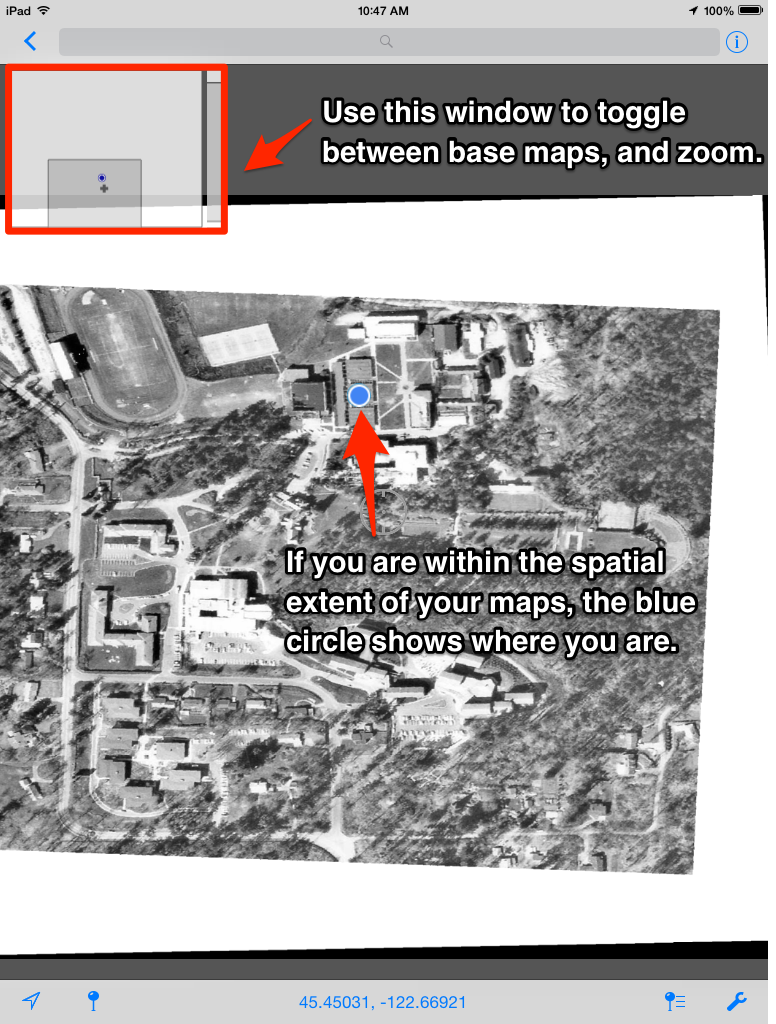
The benefit of having multiple basemaps is the ability to switch between them easily. The only way to do this is to make a folder, add all desired maps into the folder and use the navigation panel to toggle between the layers.
Adding Placemarks (to all or selected layers)
Using the placemarks feature in PDF maps, you can select and save a specific location to basemaps, and include needed notes. If you are using this for extensive data collection, however, we suggest using Fulcrum instead.
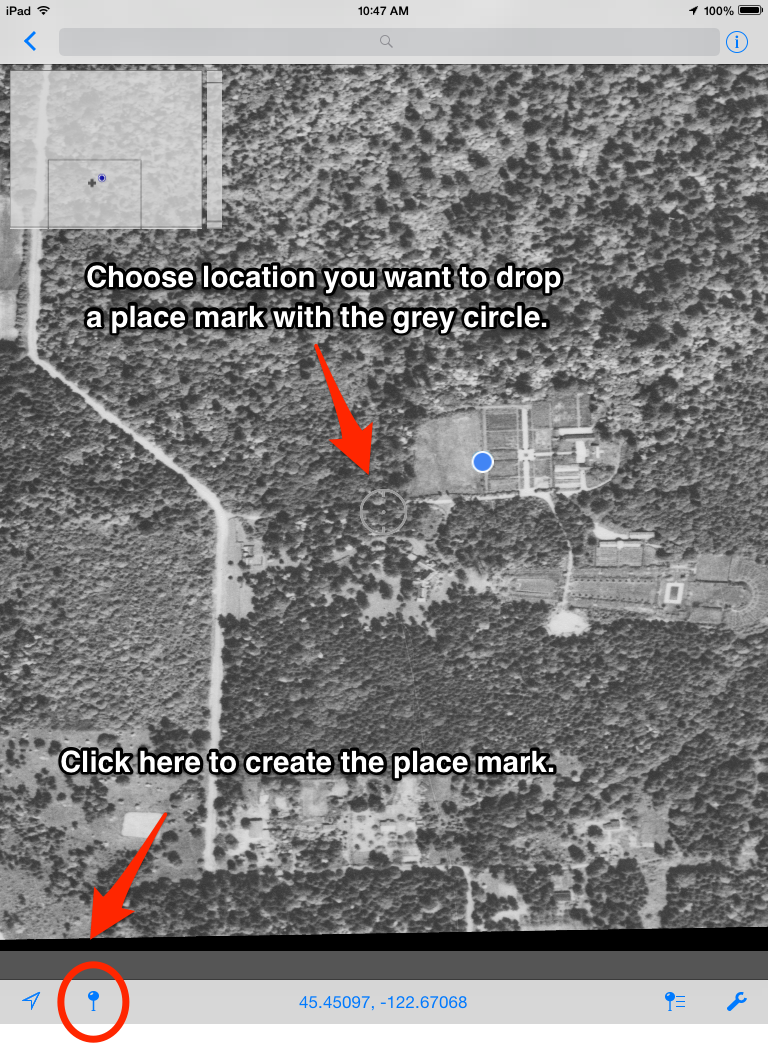
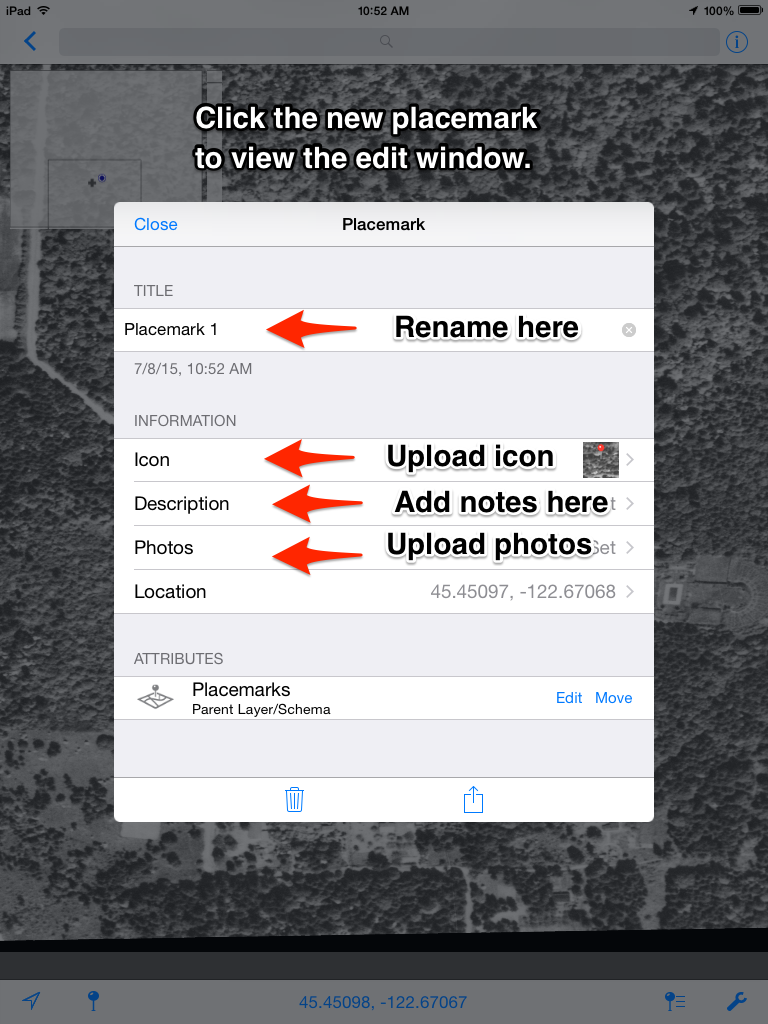
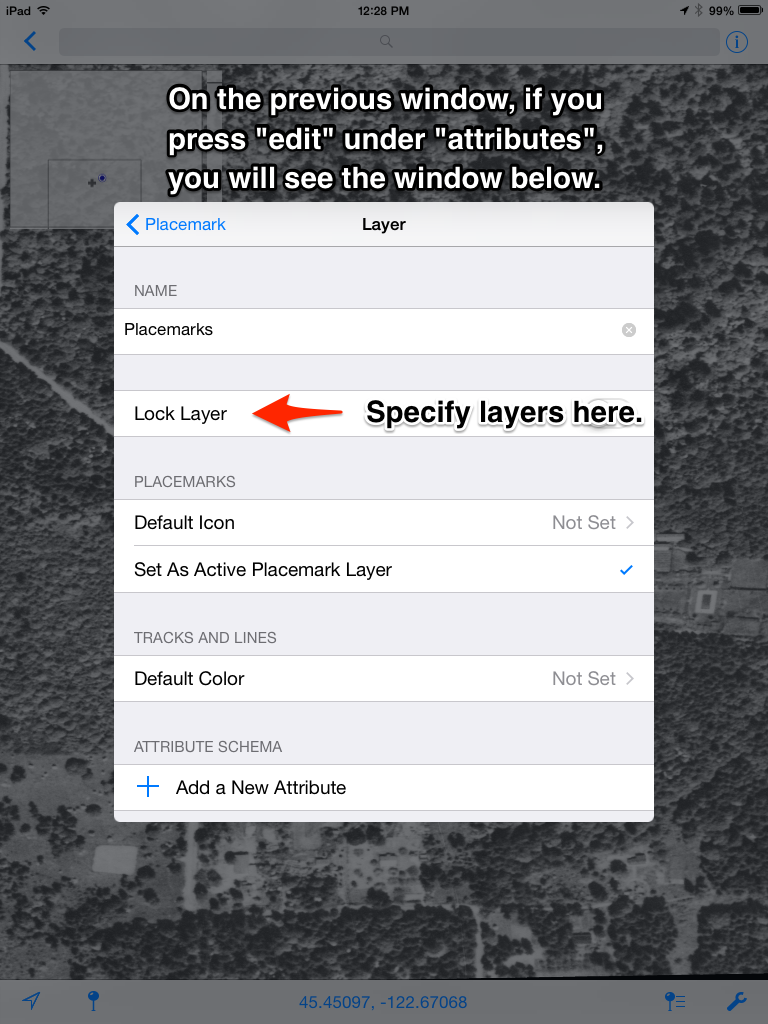
The “lock layer” function can specify which layers the placemark should be maintained. If you want to make a placemark at the location you are currently in, align the grey circle with the blue circle and click the blue pin at the bottom of the screen. This also can be done automatically by clicking the blue arrow in the bottom left corner.
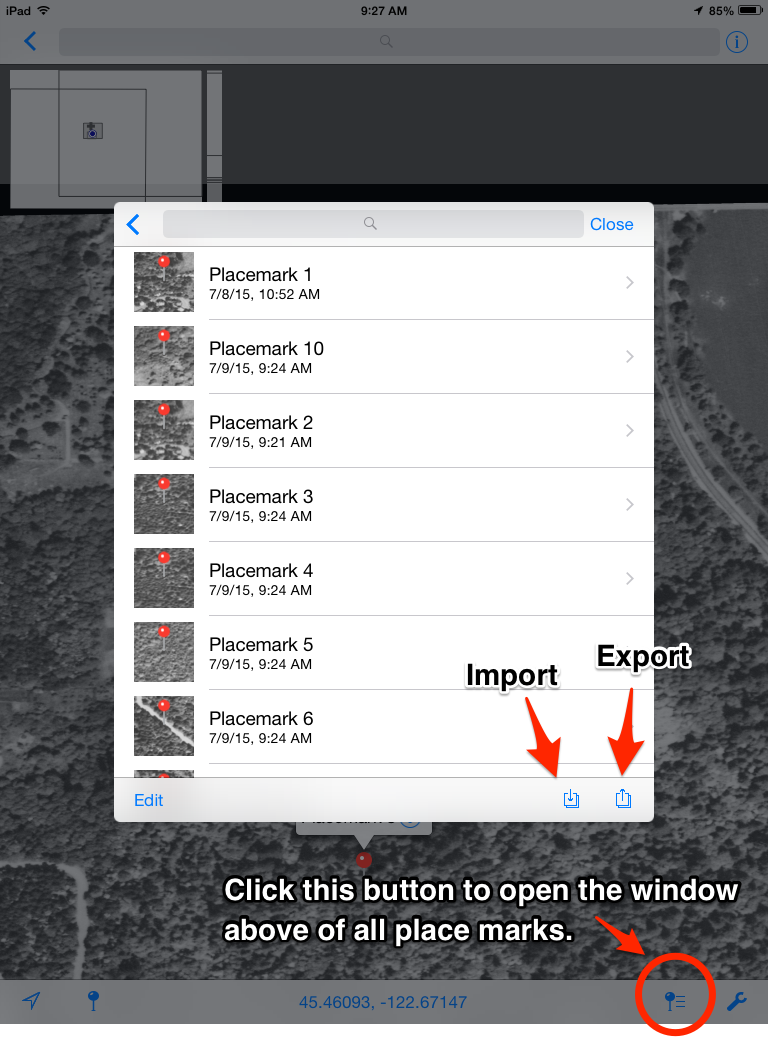
Exporting Placemarks
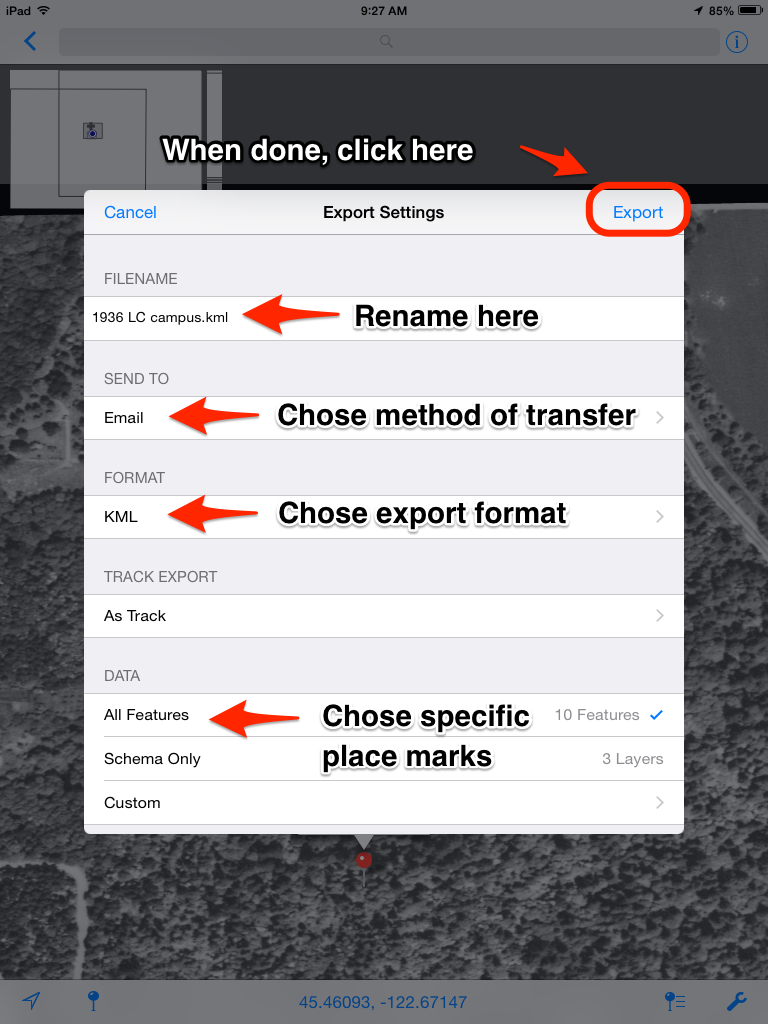
After entering all of your placemarks, you may want to export them in a different format for viewing and analysis. PDF maps offers three formats: you will most likely want KML or CSV.
KMLs: Can be viewed in GoogleEarth, and download easily though the iTunes File sharing option. This method requires being connected to a computer. Once selected, the file can be dragged onto the desktop in iTunes: Device > Apps > Scroll down to File Sharing > PDF Maps > Select File.
Emailing is also useful if you do not have the hardware for iTunes File Sharing, but you must set up your email account on the device (and remove it afterwards if necessary).
We discourage using Airdrop, since there have been some conversion issues in formatting.
CSVs: A good way to get the placemarks you collected as simple data entries that can be viewed in Excel. All notes are maintained in this format. CSVs can be used for GIS as well.
For more support visit the PDF Maps Avenza website here.