Digital Scholarship Help

  • Get Started
    • Log In
    • Edit Profile
    • Add a Post >
      • Check Spelling/Grammar
      • Include Categories & Tags
      • Include Imagery
      • Include a Map
      • Include Links/Feeds/Embeds
      • Include Math, Charts, and Tables
  • Setup Your Site
    • First Steps >
      • 1. Get a Site
      • 2. Setup Your Site
    • Next Steps >
      • Menus
      • Plugins
      • Themes >
        • Theme Edits
      • Widgets
      • Jetpack Site Admin
    • Using Your Site >
      • Image Displays
      • Projects
      • Subsites
      • Restricting Page Access
      • Exporting Your Site
  • Share & Engage
    • Comments
    • Contacts
    • RSS Feeds
    • Press This
    • Social Media
    • Subscriptions
    • The WordPress Firehose
  • Learning Tools
    • Computer Platforms/Apps >
      • Concept Mapping
      • Flickr
      • Gephi
      • Twitter
      • Zotero
    • Mapping >
      • ArcGIS & QGIS
      • Creating Tours
      • Find Spatial Data via geo.lclark.edu
      • Georeferencing
      • GIS Datafile Hints
      • Google Mapping
      • Joining Data
    • Mobile Apps >
      • ArcGIS Apps
      • Fulcrum
      • Location-Aware Apps
      • PDF Maps
      • WordPress Mobile App
  • Some Examples
    • Effective Posts
    • Effective Sites
    • Effective Subsites
  • Get More Help
    • Get Support
    • DS Training & User Group
    • Training Outlines >
      • DS Training – Level 1 (Users)
      • DS Training – Level 2 (Admins)
      • DS Training – Level 3 (Network Admins)

Restricting Page Access

Occasionally a site owner may want to limit access to part of their site. Usually we would recommend enabling Access, but this plugin is currently unavailable. For now we recommend using the Nav Menu Roles plugin, which requires your page to be part of your menu if you want to restrict access. Below you will find instructions for activating and using this plugin.

  1. NavMenuRole

    Click image to expand

    Activate the plugin by going to Dashboard > Plugins where you will click Activate under Nav Menu Roles.

  2. Then go to Appearance > Menus to add your page to your menu. From there you will be able to choose who has access to the page.
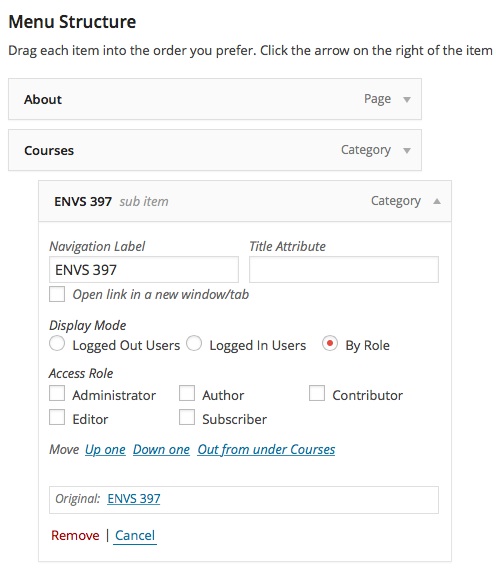
You may want to only give access to logged in users, or you can also decide who has access depending on their user role. See image to the right.

Digital Scholarship Multisite © 2018 · Lewis & Clark College · Log in