In order to incorporate Twitter and other social profiles onto your personal site, Simple Social Icons, Genesis Simple Share, Twitter Tracker, and Genesis Latest Tweets are a few widget plugins you may choose to activate.
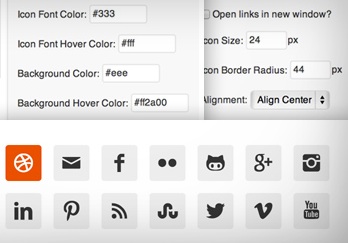
Simple Social Icons
Add a social profile link
The Simple Social Icons widget allows you to display icons that link visitors to your various social profiles. Some of the
profiles you may wish to link to include LinkedIn, Twitter, Flickr, or your email. In order to match the appearance of your personal site to these icons, you can customize the color and size of your icons on the widget settings form. A quick guide to html color values can be found here.
Add social media share buttons
The Genesis Simple Share plugin provides a way to add social media share buttons (e.g., Twitter, Facebook, Linkedin) to your posts or pages. After activating this plugin, navigate to Dashboard > Genesis > Simple Share where you will be able to edit settings, including the icon appearance, size, display position, and locations to enable the buttons.
Add a twitter feed
If you have a personal Twitter accoun t, Askupa Twitter Feed is a neat way of displaying your recent tweets on your home page or other page or post. Setting up this widget requires you to add a Twitter application in order to obtain your API keys. You will be able to obtain this info by adding a new Twitter application. On the Twitter application page you will need to:
1. Fill in Name, Description, Website, and Callback URL (same as Website).
2. Agree to rules > submit your application.
3. Click the API Keys tab > Token Actions > Create my access token.
4. Click on the API Keys tab again to obtain your keys. (Consumer keys are the first two keys found at the top of the page labeled API Key and Secret)
5. Return to your Dashboard > Twitter Feed > Tokens.
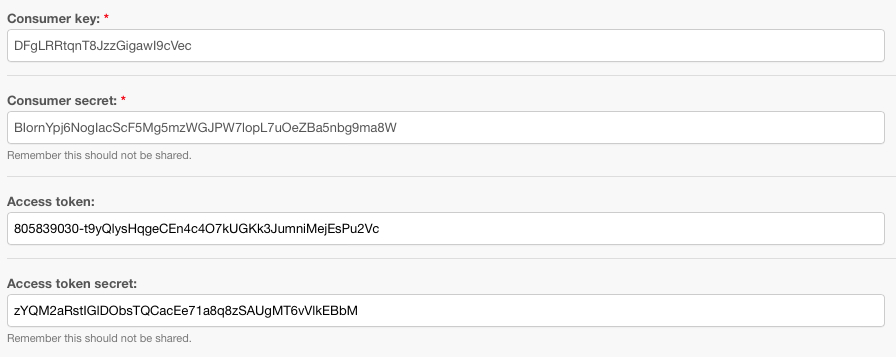
6. Once there, you’ll see several boxes where you can enter your API keys to authorize your account like the keys found below.
Once you have added your tokens to your site, add Twitter Feed Widget to a widget area on your page under Appearance > Widget. From there you will be able to edit the settings to choose your account and customize styling. If you want a twitter feed on a page or post you will need to follow the shortcode instructions found under Dashboard > Twitter Feed > Help.
Click image to expand